Account security
Two-factor authentication, passkeys, account activity and other devices.
These settings are in My account, at the bottom of the sidebar.
Turn on two-factor authentication
Open Security → Two-factor authentication. Once it is on, a 6-digit code from your app (Google Authenticator, 1Password, Authy…) is required after your password.
Keep the recovery codes somewhere safe. They let you sign in if you lose your phone.
Add a passkey
A passkey lets you sign in without a password, with Touch ID, Face ID, Windows Hello or a security key. Open Security → Passkeys → Add. You can add one passkey per device.
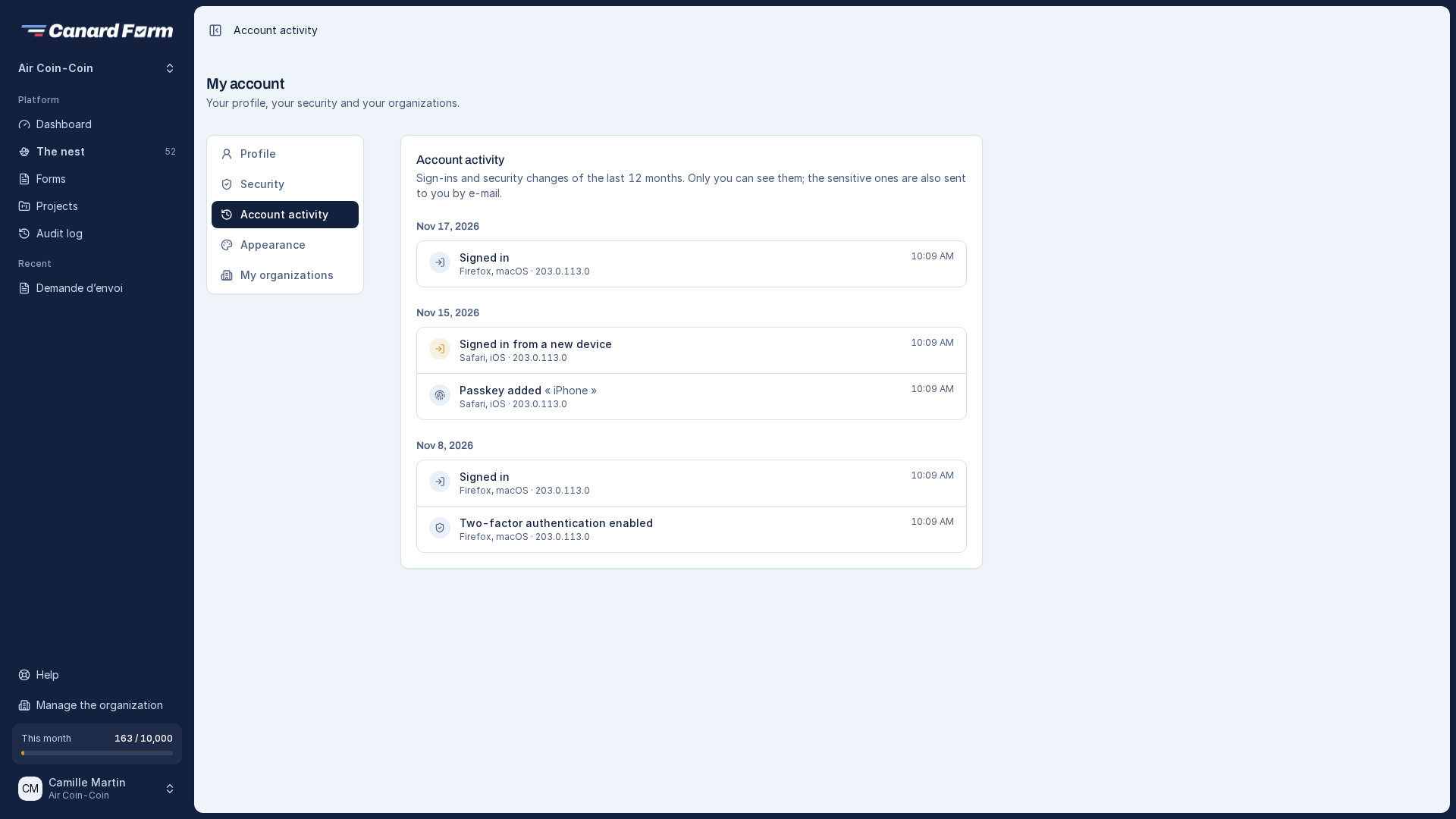
Review account activity
My account → Account activity lists sign-ins and security changes from the last 12 months: device, browser, IP address (shortened). Only you can see it.
You receive an email right away in these cases:
- sign-in from a new device
- password changed or reset
- email address changed (the old address is notified too)
- two-factor authentication turned off
- passkey added
- your other devices signed out
Sign out your other devices
If you lose your phone or have used a shared computer, open Security → Other devices → Sign out my other devices. Only the browser you are using stays signed in. Changing your password has the same effect.
Change your email address
Change your address in Profile. The new address receives a confirmation link. The old address stays active until you click this link.