Notifications and automatic reply
Notify your team of each submission and send an automatic reply to the visitor.
These settings are in Configuration → Notifications of each form.
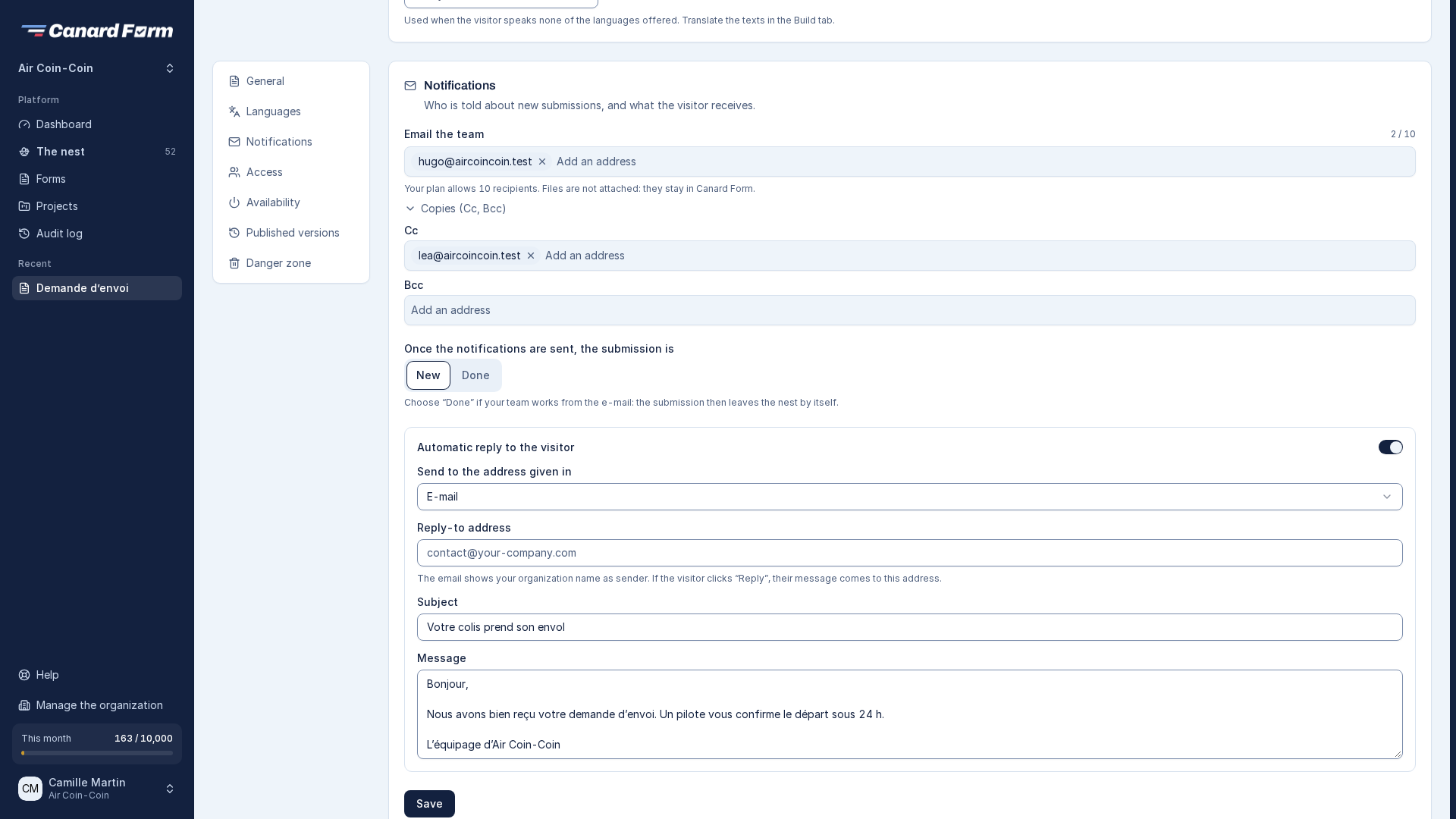
Notify your team
In Email the team, add the addresses that receive an email for each submission. Each address is set to To, Cc or Bcc (copies from the Starter plan). The number of recipients depends on your plan.
The email contains the answers. Files are not attached: they stay in Canard Form and are available through a link.
Submission status after notifications are sent
- New (default): the submission appears in the nest.
- Done: the submission doesn't appear in the nest. Choose this option if your team handles submissions from the email.
Send an automatic reply (Starter and Pro)
The automatic reply is an email sent to the visitor after they submit the form.
- Turn on Automatic reply to the visitor.
- Choose the email field where the visitor enters their address.
- Write the subject and the message (in each language of the form).
- Enter a Reply-to address. If the visitor clicks "Reply", their message goes to this address.
The sender name shown is your organization's name.
If the chosen email field is removed from the form, the automatic reply is turned off the next time you publish. Choose another email field to turn it back on.