Handle submissions
Review new submissions in the nest, add notes and export.
The nest
The nest, in the sidebar, groups the new submissions of all the forms you can access. The number next to it shows how many submissions are waiting.
- Filter by form, sort by date or search for a word. The New, Done and All tabs filter the submissions shown.
- Click a submission to show its details next to the list.
- Move between submissions with the arrows on the details panel or the j and k keys.
- Mark as done removes the submission from the nest. Reopen puts it back.
- Reply by e-mail opens your email app with the visitor's address.
The nest updates in real time. Submissions received or handled by another member appear without reloading the page.
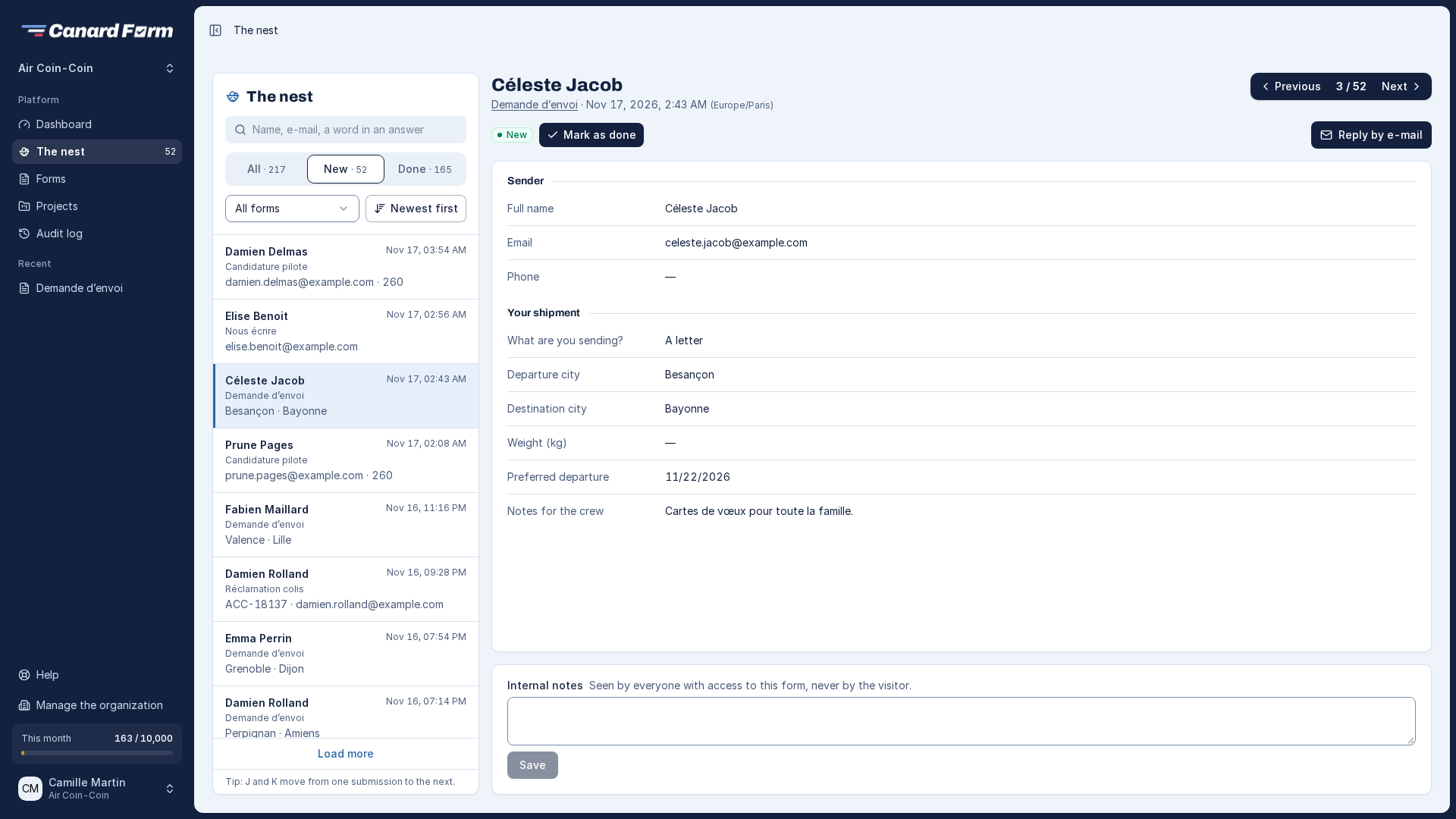
Submission details
The details panel shows the visitor's answers, the time received (in your time zone), the form version used and the attached files. You can add Internal notes. Only members who can access the form see them, never the visitor.
View all submissions to a form
The Submissions tab of the editor lists all the submissions to the form, done or not. You can filter them by status and by period.
Export submissions
In the Submissions tab, click Export to download the filtered submissions as CSV (for a spreadsheet) or JSON (for a developer). Dates use your organization's time zone. Each export is recorded in the Audit log.
Submission retention
The retention period depends on your plan: 90 days on Free, 1 year on Starter, 3 years on Pro. At the end of this period, submissions and their files are deleted automatically.
If you switch to a plan with a shorter retention period, you have 7 days to export the submissions concerned. You receive an email, then a reminder the day before deletion.