Members and roles
Invite members and set their permissions.
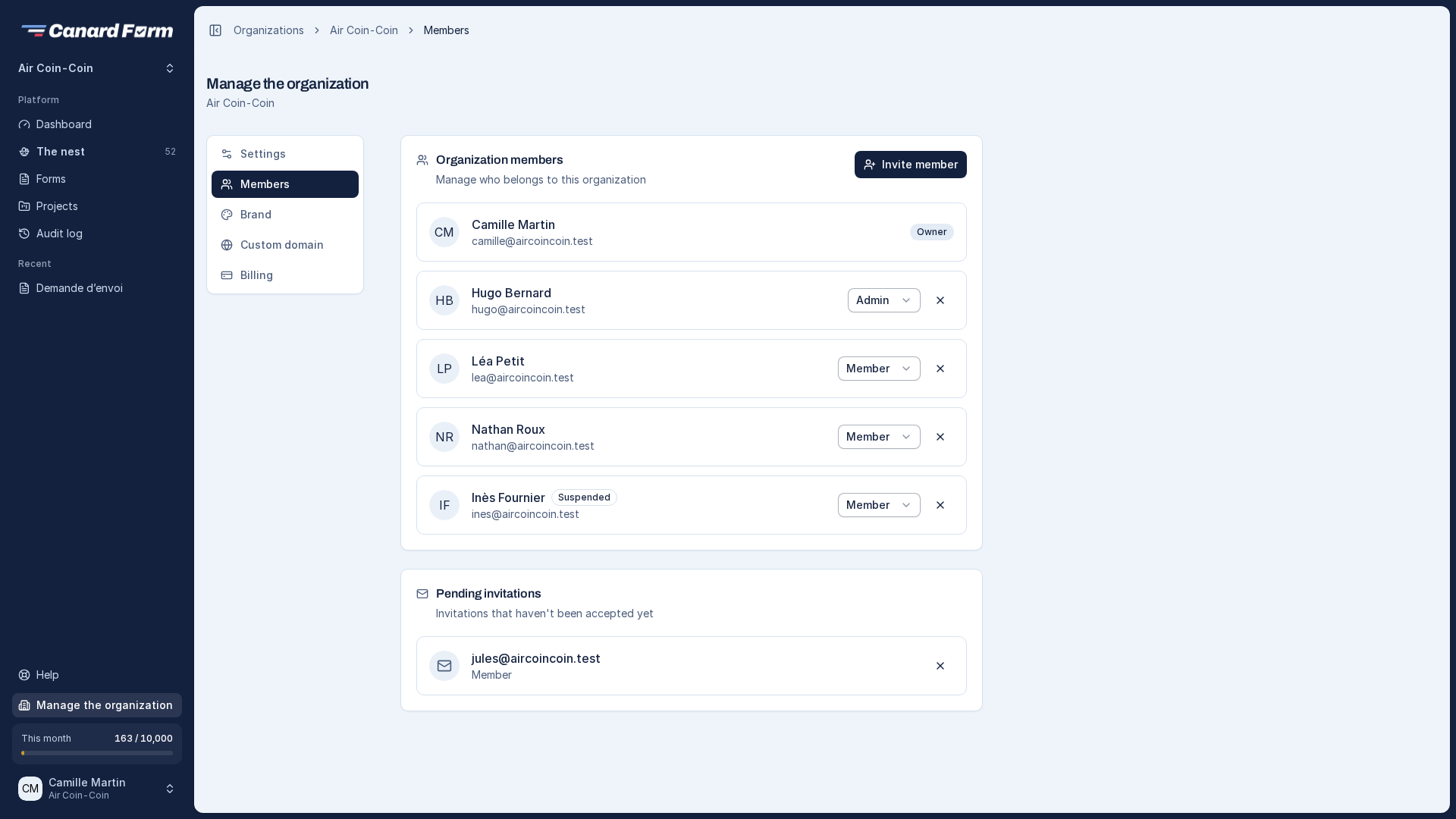
Invite a member
- Open Manage the organization → Members and click Invite member.
- Enter their email address and choose their role.
The person receives an invitation that is valid for a few days. The number of members depends on your plan.
Roles in the organization
| Role | Permissions |
|---|---|
| Owner | All permissions, including billing and deleting the organization. One per organization. |
| Admin | Organization settings, projects, audit log. Invites members and can remove a plain member. Sees all forms. |
| Editor | Edits and publishes every form of every project, present and future, and handles responses. Manages neither members nor settings. |
| Viewer | Reads every form and its responses, without changing anything. |
| Member | Only sees the projects and forms they are assigned to. |
Only the owner appoints or removes an admin. An admin invites someone and gives them the Editor, Viewer or Member role. For access limited to some projects, choose Member, then assign the person (see below).
Transfer ownership
The owner can hand the organization over to another member: in Members, open the person's role and choose Make owner…, then confirm with your password. They become the owner (billing and deletion included) and you become an admin. You cannot take ownership back yourself. A personal space cannot be transferred.
Assign a member to a project or a form
A member has no access to any form until they are assigned. From a project's page (or a form's access settings), add them with one of these roles:
- Viewer: views forms and their submissions, can't change anything.
- Editor: edits and publishes forms, handles submissions.
- Admin: has editor permissions, manages assignments and can delete the project's forms.
An assignment to a form adds to the project assignment. The highest role applies.
Remove a member
When a member is removed or their role is lowered, they lose access immediately, including in pages they already have open. Their past actions stay in the audit log.
If your new plan allows fewer members than you have, the most recent members are suspended. The oldest members keep their access. Suspended members get their access back as soon as the plan allows it.